A phone shooting 4K video can still look like a phone video. Four settings close a meaningful part of that gap: the frame rate, the shutter, how focus and exposure behave, and the colour grade. Lighting, composition and camera movement still matter at least as much; these four are just easy to leave on their defaults.
This is the same breakdown we use in our own phone-filmmaking work. The controls exist on supported iPhone and Samsung Galaxy models, though which ones are available, and where to find them, varies by model and by app.
Contents
1. Shoot at 24 frames a second
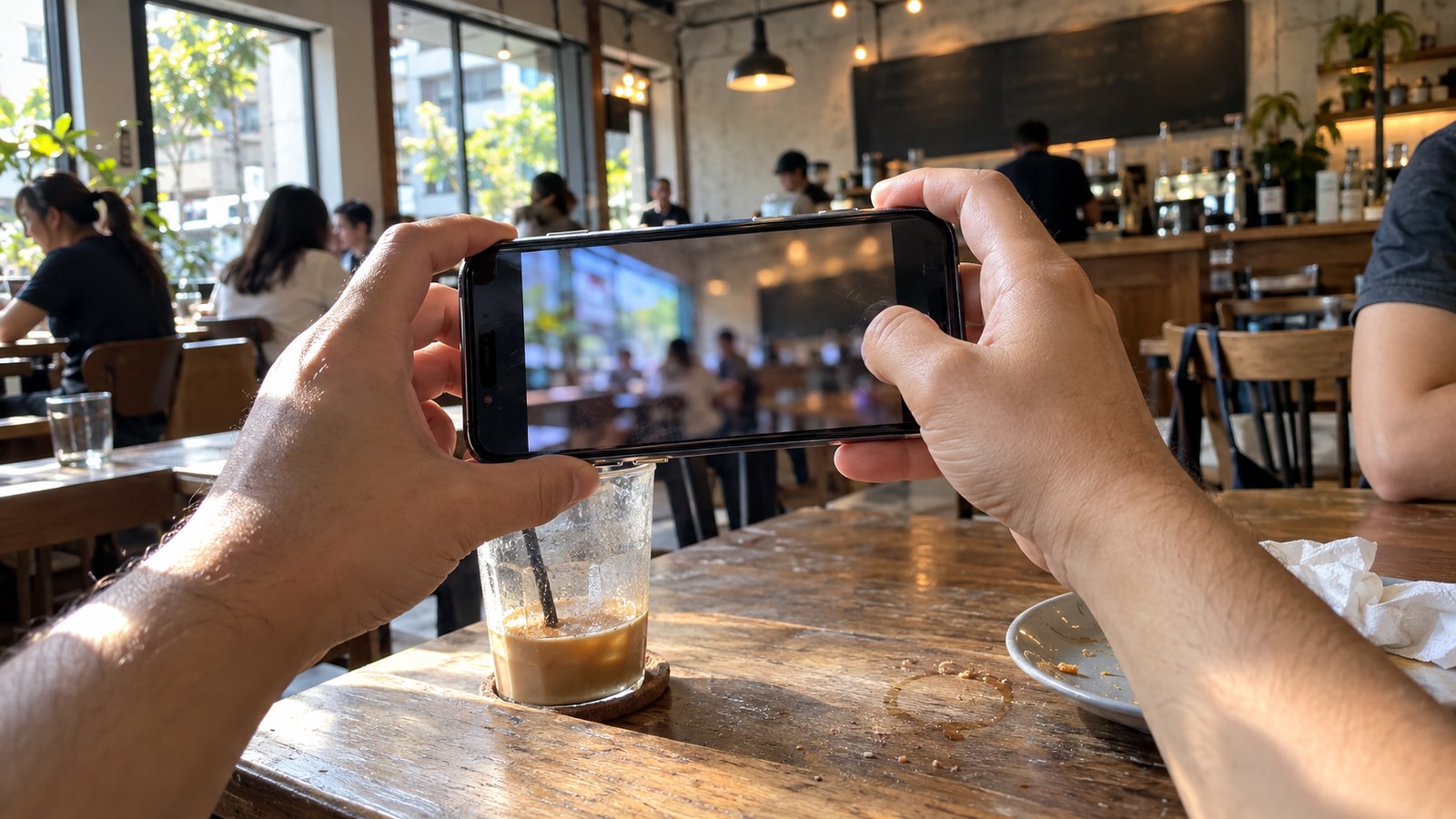
24fps is cinema's traditional frame rate, per Blackmagic Design and RED Digital Cinema's own camera documentation. Check your phone's default video setting first: if it is set to 30fps or 60fps, switch it to 24fps.
On iPhone, it is under Settings, Camera, Record Video, where 24fps appears as an option on supported models, per Apple's iPhone User Guide. On Samsung Galaxy, Pro Video mode exposes frame rate selection on supported models, per Samsung's Galaxy camera help pages, though the exact menu varies by device.
2. Set the shutter to 1/50, not whatever it picks automatically
Cinema uses a convention called the 180-degree shutter rule: the exposure lasts half the frame interval, which at 24fps works out to 1/48 of a second, per Blackmagic Design and RED Digital Cinema's specifications. 1/50 is the nearest common setting to 1/48, and shooting at it carries the soft motion blur associated with that convention, rather than the crisper, more stroboscopic look of a faster automatic shutter.
Most iPhones have no shutter control in Apple's own Camera app, per Apple's iPhone User Guide, though the iPhone 18 Pro adds it. The workaround is the free Blackmagic Camera app, which supports iPhones on iOS 16.6 or later and selected Android models (check its own device list), or Pro Video mode on Galaxy, which gives manual control on supported models. In bright sunlight, an ND filter can let you keep a slower shutter without overexposing the shot. If indoor lights flicker on screen, nudge the shutter until it stops.
3. Lock focus and exposure before you hit record
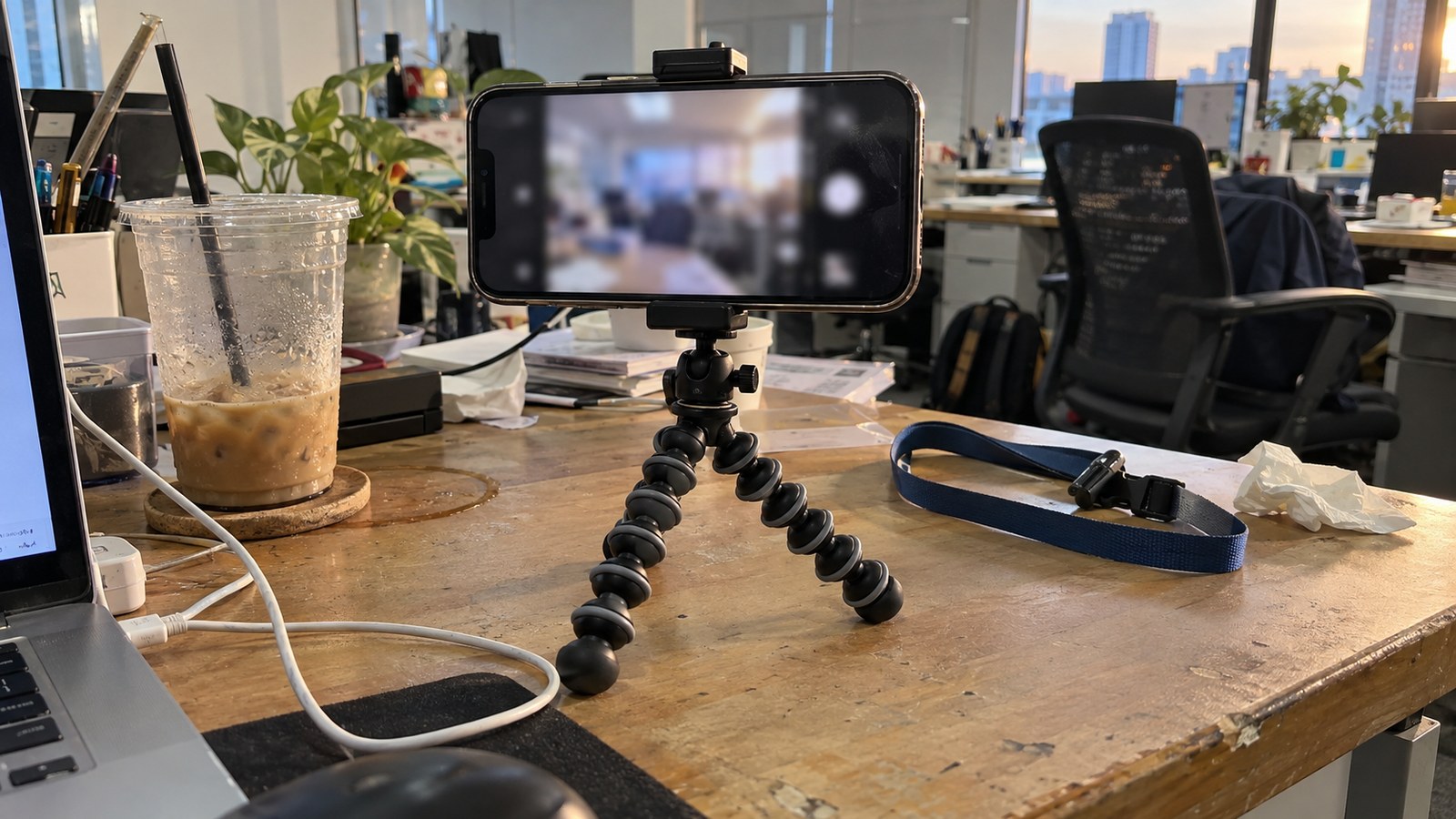
Left on auto, a phone keeps adjusting: refocusing when something crosses the frame, brightening when a cloud passes, darkening when someone walks behind a window. A deliberately framed shot is more often set before it rolls rather than adjusted mid-take, which is one reason a locked phone shot can read differently from an auto one even at the same resolution.
On iPhone, touching and holding the frame shows an AE/AF LOCK banner, which fixes both exposure and focus at that point, per Apple's iPhone User Guide. Supported Galaxy modes offer the same touch-and-hold lock, per Samsung's Galaxy camera help pages. Doing this before recording, rather than mid-shot, helps stop the picture visibly pumping from autofocus and autoexposure hunting.
4. Finish with a LUT, after fixing exposure and white balance first
A LUT (lookup table) applies a consistent colour transform to a clip, one of the places the film feel in finished footage comes from. DaVinci Resolve, which has a free edition, accepts standard .cube LUT files, per Blackmagic Design's own documentation.
The order matters for a creative look LUT like this one: it is a finishing step, not a fix for bad exposure or a wrong white balance. Correct those first in the editor, then apply the LUT on top. Applying it to badly exposed footage just produces a badly exposed clip in a different colour.
We made our own, for anyone who wants a starting point rather than a blank editor: Kodak Dusk, our own LUT built for standard, non-Log footage. It is free to request; DM us the word LUT on Instagram and our support assistant sends it over by email.
Usually, no new phone needed
Every setting above is a software control or a free app, not new gear. How far each one goes still depends on the model: Blackmagic Camera's own device list decides whether step 2 is available at all, and Apple limits native manual shutter control to iPhone 18 Pro. Within whatever a given phone supports, the lighting, framing and movement are still down to the person filming.
For more on what to pair a phone with for better results, see our Sony ECM-AX10 spatial audio phone mic review, and our coverage of the Nothing Headphone (1) Pro's pre-order in Malaysia.