

Ever tried editing a spreadsheet on a tiny screen while juggling Zoom calls and Spotify? Or maybe you’ve been mid-game, only to be betrayed by lag and ghosting? We’ve all been there, the struggle of finding the perfect monitor that fits our needs and budget is real.
In 2025, the monitor market in the Philippines is brimming with options. Whether you're a hardcore gamer, a creative professional, or someone who just wants a reliable screen for daily tasks, there's a monitor out there for you. Let's dive into the top picks that cater to various needs and budgets.
Contents
- Buying Guide - How to Choose a Monitor in the Philippines
- Comparison Table - Top Monitors in the Philippines to Buy Online
- Frequently Asked Questions Answered by the ProductNation Team
- What is the best monitor size for work from home?
- Is 4K overkill for a monitor?
- Can I use a TV as a monitor?
- Are curved monitors better?
- Where can I buy authentic monitors in the Philippines?
- Complete List of Top 8 Monitors in the Philippines
- AOC CQ27G3S/BK
- ASUS ProArt Display PA278CV
- Samsung Odyssey G55C
- ViewSonic VX3276-MHD-3
- LG 34WP65C-B 34” Curved UltraWide QHD Monitor
- Acer Nitro VG240Y M3bmiipx
- LG 29WP500-B UltraWide
- Dell S2722QC 27" 4K UHD USB-C Monitor
- Conclusion
- Related guides
Buying Guide - How to Choose a Monitor in the Philippines
Here’s a friendly walkthrough so you don’t end up with buyer’s remorse, or a monitor that's a mismatch for your needs.
What’s the Deal with Network Compatibility?

Monitors aren’t like pocket WiFis, but if you’re going for smart monitors or those with built-in OS (like Samsung M8), Wi-Fi support and compatibility with your internet speed becomes crucial. Look for 5GHz Wi-Fi support if you stream or cloud-game.
How Long Does Your Monitor Need to Last on Battery?

Monitors are usually plugged in, but portable monitors (like ASUS ZenScreen) have batteries. Battery life here ranges from 3–5 hours, but most Pinoys using these for business trips or on-site presentations find 4 hours decent enough.
How Many Devices Do You Need to Connect?

If you're planning to use multiple inputs (e.g. console + laptop + PC), go for monitors with:
- 2+ HDMI ports
- USB-C with DisplayPort support
- DisplayPort chaining (ideal for multi-monitor setups)
Do You Need a Monitor That’s Easy to Move?

Planning to move your setup between home and office or travel for work? Consider these:
- Weight (under 1.5kg for portable monitors)
- Built-in stand or kickstand
- USB-C single-cable solutions (power + display)
What’s Your Budget for a Monitor?
 sd
sd|
Budget Tier |
Price Range |
Best For |
|
Entry-Level |
₱999 – ₱5,000 |
Portable/secondary screens |
|
Mid-Range |
₱5,001 – ₱15,000 |
Students, gamers on a budget |
|
Upper Mid-Range |
₱15,001 – ₱30,000 |
Professionals, streamers |
|
Premium |
₱30,001 – ₱50,000+ |
Creatives, 4K and ultra-wide fans |
Comparison Table - Top Monitors in the Philippines to Buy Online
|
Monitor |
Product Image |
Price Range (PHP) |
Where To Buy |
Best For |
Display |
|
AOC CQ27G3S/BK |
 |
₱15,000+ |
|
Mid-Range Competitive Gaming |
27" QHD, 1000R Curved, VA |
|
ASUS ProArt PA278CV |
 |
₱27,000+ |
|
Creative Professionals |
27" WQHD, IPS |
|
Samsung Odyssey G55C |
 |
₱12,600+ |
|
Budget Gaming |
27" QHD, Curved |
|
ViewSonic VX3276-MHD-3 |
 |
₱15,800+ |
|
Work-from-Home |
32" Full HD, IPS |
|
LG 34WP65C-B |
 |
₱25,000+ |
|
Multimedia & Multitasking |
34" UW-QHD, Curved |
|
Acer Nitro VG240Y |
 |
₱9,399+ |
|
Budget Gaming & Study |
23.8" Full HD, IPS |
|
LG 29WP500-B |
 |
₱10,500+ |
|
WFH & Productivity |
29" UW-FHD, IPS |
|
Dell S2722QC |
 |
₱24,000+ |
|
Affordable 4K USB-C Productivity |
27" 4K UHD, IPS |
Frequently Asked Questions Answered by the ProductNation Team
What is the best monitor size for work from home?

For most Pinoys working from home, a 27-inch monitor hits the sweet spot, big enough for multitasking, not too bulky for a typical desk.
Is 4K overkill for a monitor?

Not really, if you do design, video editing, or just enjoy ultra-crisp visuals, 4K is amazing. But if you’re just browsing and emailing, Full HD or QHD will do.
Can I use a TV as a monitor?

Technically, yes. But TVs usually have higher input lag and lower refresh rates. Text also looks fuzzy due to lower pixel density. Go for a monitor if you’re working or gaming a lot.
Are curved monitors better?

For gaming and immersive tasks, yes. For spreadsheets or office work? Debatable. Some find flat panels more natural for reading and editing.
Where can I buy authentic monitors in the Philippines?

Stick to:
- Official Brand Stores on Lazada/Shopee
- Authorized PC retailers like PC Hub, EasyPC, DynaQuest
- Brand outlets in malls like SM Cyberzone
Complete List of Top 8 Monitors in the Philippines
3 more points
Mini verdict
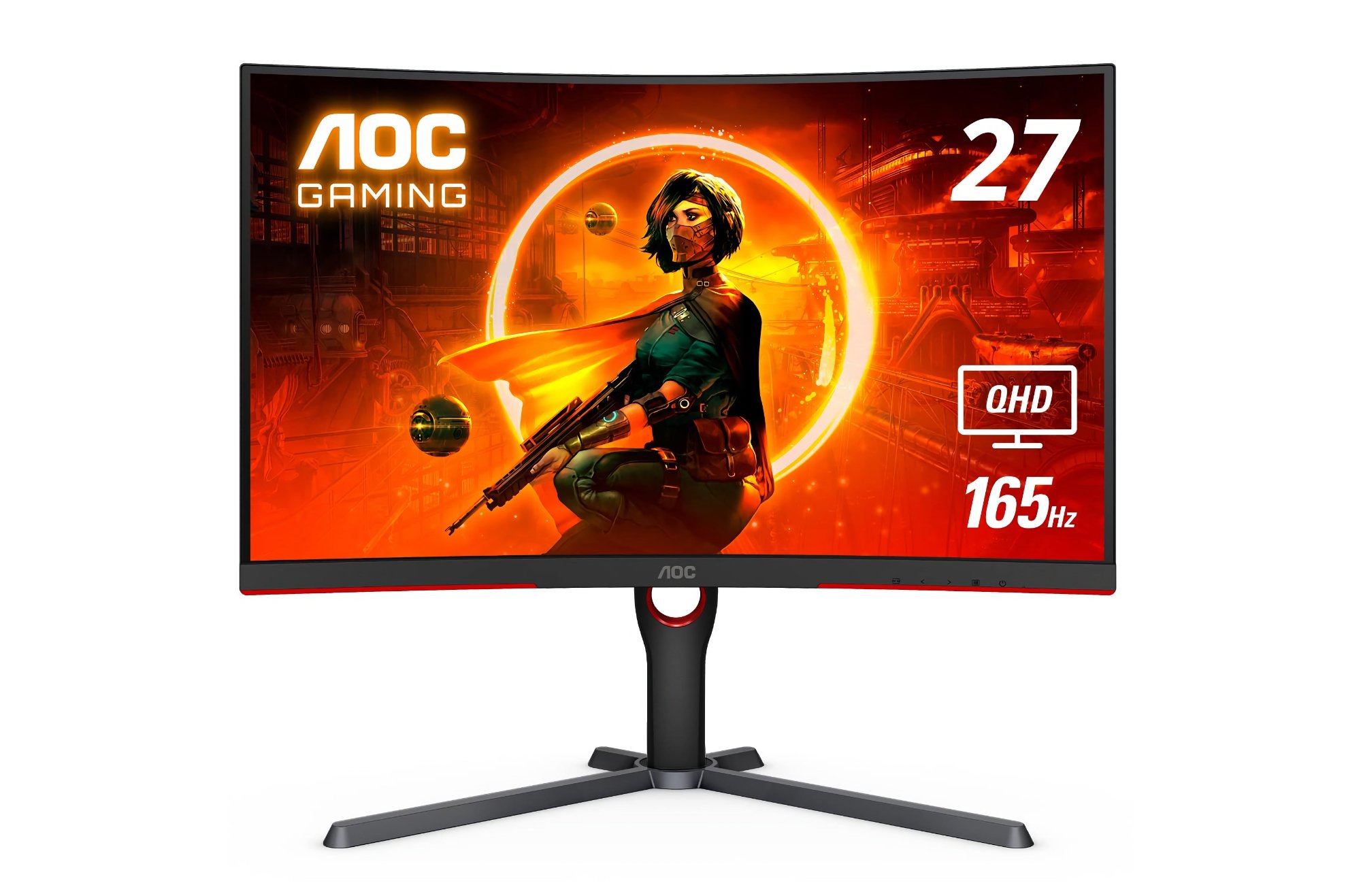
A 27-inch, 1000 R curved battlestation that lands in the mid-price sweet spot: QHD sharpness meets 165 Hz fluidity, so you can track targets in Valorant without sacrificing crisp HUD text. Its VA panel’s deep blacks add drama to late-night cinema sessions, while FreeSync Premium keeps frame pacing butter-smooth on AMD or NVIDIA GPUs.
Specs:
- 27-inch 2560 × 1440 VA, 1000 R curve
- 165 Hz / 1 ms MPRT
- 2 × HDMI 2.0, 1 × DisplayPort 1.4
- VESA 100 × 100, height/tilt/swivel stand
Why we recommend it
Hits the current competitive “sweet combo” (1440p + 165 Hz) without the premium-panel tax, and the aggressive curve adds immersion usually reserved for pricier 32-inch models.
User tip
Enable MBR (Motion Blur Reduction) only for twitch shooters, turn it off for RPGs or movies to reclaim brightness and color pop.
2 more points
Mini verdict
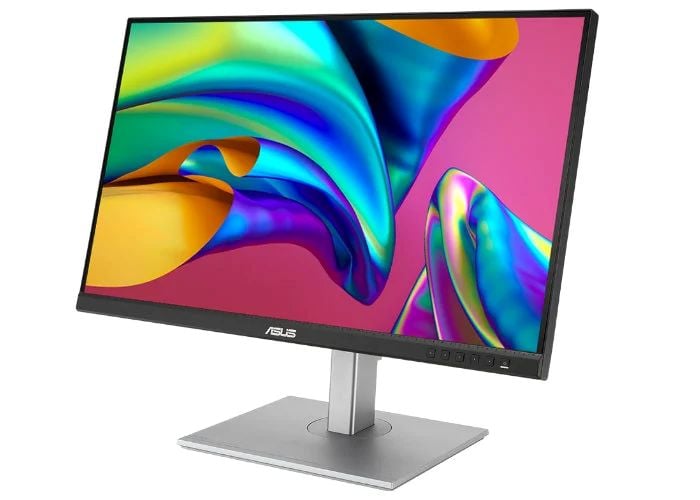
Built for pixel-perfectionists: pre-calibrated ΔE < 2 accuracy, 100 % sRGB/Rec.709, and a USB-C port that powers a 65 W laptop while pushing WQHD video, all from one cable. If your income depends on color correctness, this is “plug in and trust the screen” territory.
Specs:
- 27-inch 2560 × 1440 IPS, 75 Hz
- ΔE < 2, Calman-Verified, 100 % sRGB
- USB-C 65 W PD, 1 × HDMI, 1 × DP 1.2, 4-port USB-A hub
- Fully ergonomic stand & VESA 100 × 100
Why we recommend it
Out-of-box calibration saves you a trip to the colorimeter, and the USB-C hub declutters MacBook or XPS setups, perfect for editors, designers, and WFH creatives.
User tip
Store two QuickFit presets (sRGB for print, Rec.709 for video) on the OSD shortcuts so you can flip gamuts with one button during client calls.
2 more points
Mini verdict
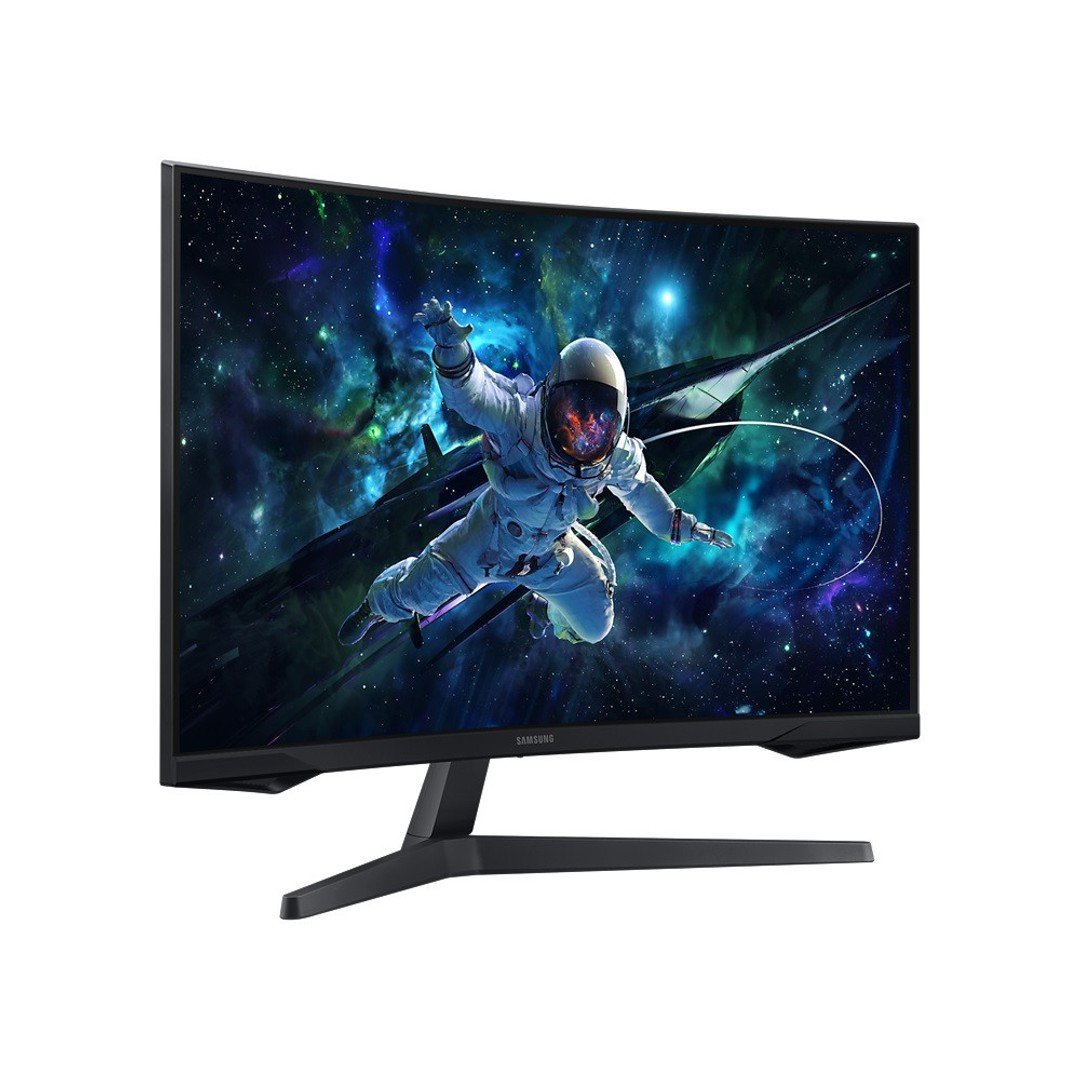
The “baby G7” that still delivers: 27-inch QHD, 165 Hz, and Samsung’s 1000 R curve for first-person immersion, all at a price that leaves room for a new mouse. Contrast is stellar for horror titles; just remember the VA trade-off, stay centred for best colors.
Specs:
- 27-inch 2560 × 1440 VA, 1000 R curve
- 165 Hz / 1 ms MPRT, FreeSync Premium
- 1 × DP 1.4, 1 × HDMI 2.0, headphone-out
- VESA 75 × 75 (stand tilt only)
Why we recommend it
You get Odyssey pedigree (fast curve, low ghosting) without the flagship tax, making it a top pick for budget-conscious e-sports grinders moving up from 1080p.
User tip
Wall-mount it to overcome the basic stand and reclaim desk space for a bigger mouse pad.
2 more points
Mini verdict
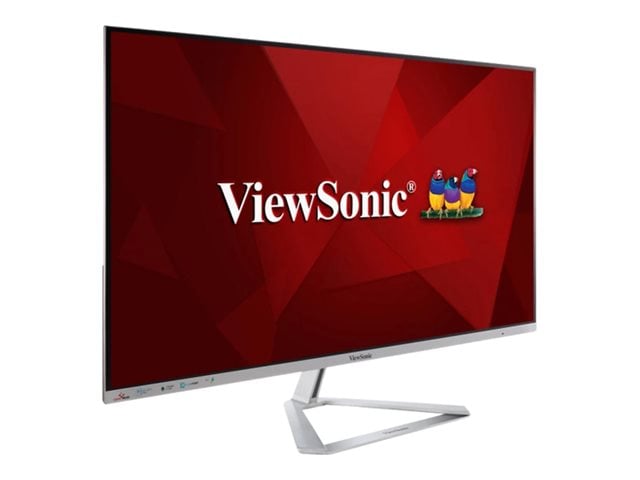
A 32-inch civil-engineering canvas for spreadsheets, dashboards, and endless Zoom windows. The frameless IPS panel looks modern in any sala-cum-office, while Flicker-Free and Blue-Light Filter features keep eye strain down during marathon deadlines. It’s also easy on the eyes (literally) with Flicker-Free and Blue Light Filter tech for those long days (and nights).
Specs:
- 31.5-inch 1920 × 1080 IPS, 75 Hz
- 1 × HDMI, 1 × DisplayPort, 1 × VGA
- Dual 2 W speakers, VESA 100 × 100 (via rear adapter)
Why we recommend it
Huge screen real-estate for multitasking at a “Full-HD” price; ideal for WFH users who value space over pixel density.
User tip
Use Windows’ 150 % scaling to keep text crisp, on a 32-inch 1080p panel it makes reading distance-friendly without blur.
3 more points
Mini verdict
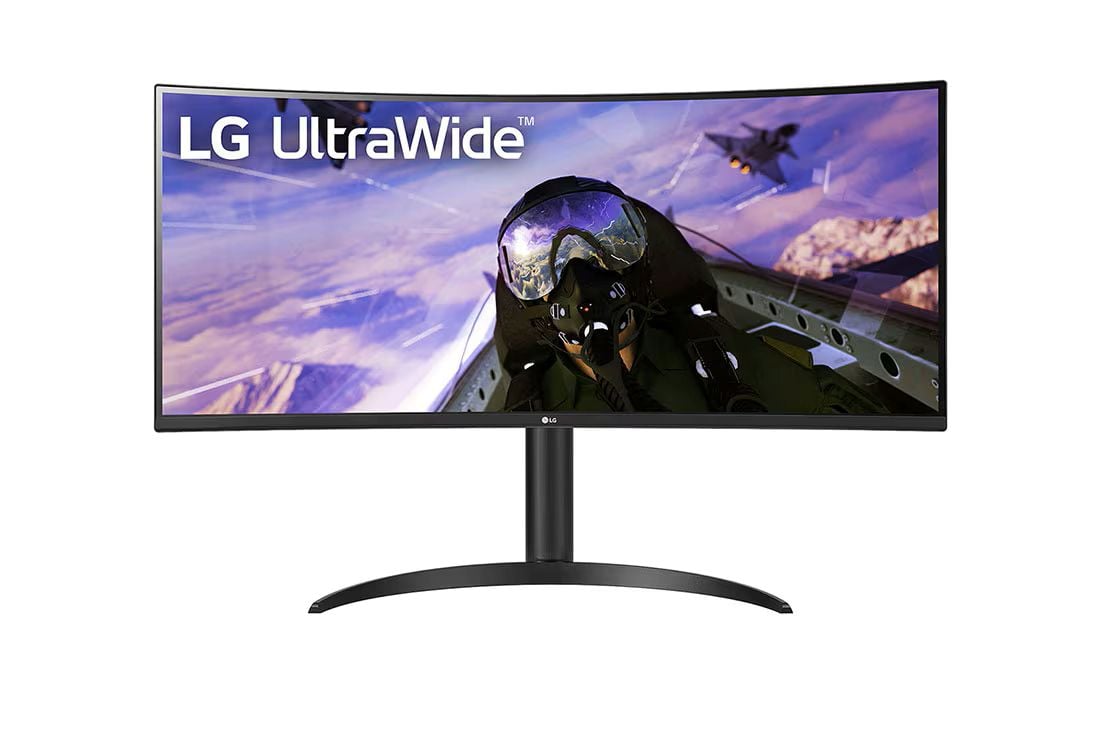
A 34-inch, 21:9 curved theater that doubles as a multitasking command center. 160 Hz refresh and FreeSync Premium mean you can jump from Premiere timelines to Apex Legends without swapping monitors, while 99 % sRGB coverage keeps colors lively for content review.
Specs:
- 34-inch 3440 × 1440 VA, 1800 R curve
- 160 Hz / 5 ms GtG, FreeSync Premium
- 2 × HDMI, 1 × DP 1.4, headphone-out
- HDR10 support, height & tilt stand, VESA 100 × 100
Why we recommend it
One of the most affordable 1440p ultrawides to break 144 Hz, giving movie buffs cinematic width and gamers smooth frames in a single package.
User tip
Activate On-Screen Control (LG software) and save a 2-window preset, dragging apps auto-snaps them to perfect halves every time.
2 more points
Mini verdict
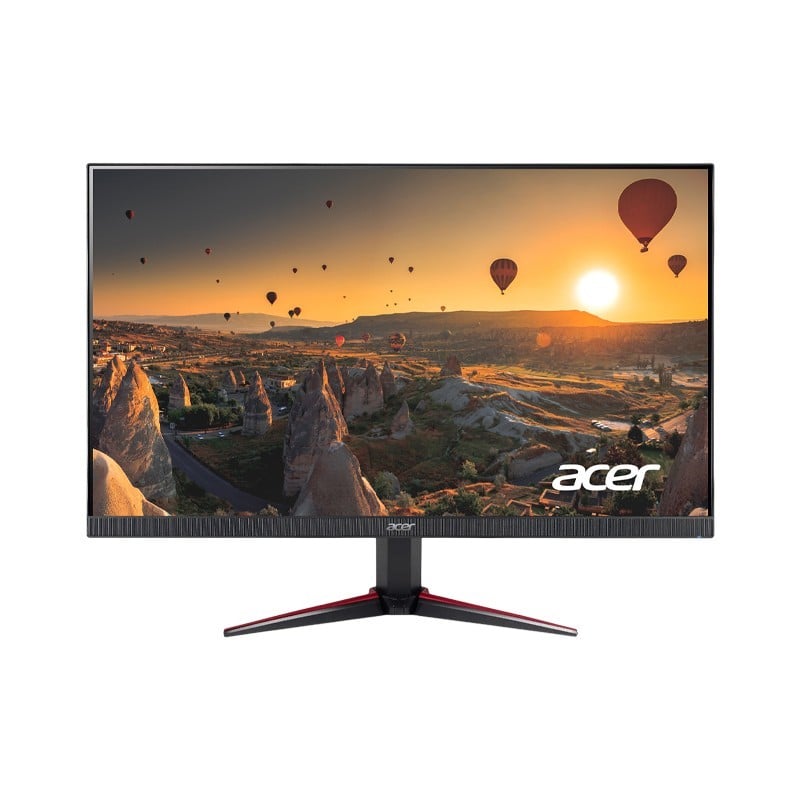
A 23.8-inch IPS speedster made for cramped dorm desks: 165 Hz refresh, AMD FreeSync, and surprisingly punchy color all under student-budget money. ZeroFrame bezels let dual-monitor dreamers butt two panels together with minimal gap.
Specs:
- 23.8-inch 1920 × 1080 IPS, 165 Hz / 0.5 ms VRB
- 2 × HDMI 2.0, 1 × DP 1.2, 2 × 2 W speakers
- VESA 100 × 100 (stand tilt only)
Why we recommend it
Brings esports-class refresh to entry-level builds and consoles (120 Hz on PS5 via HDMI), plus built-in speakers for quick group viewing.
User tip
Flip Black Boost to “2” for competitive shooters, it brightens shadowed corners without washing out the whole image.
2 more points
Mini verdict
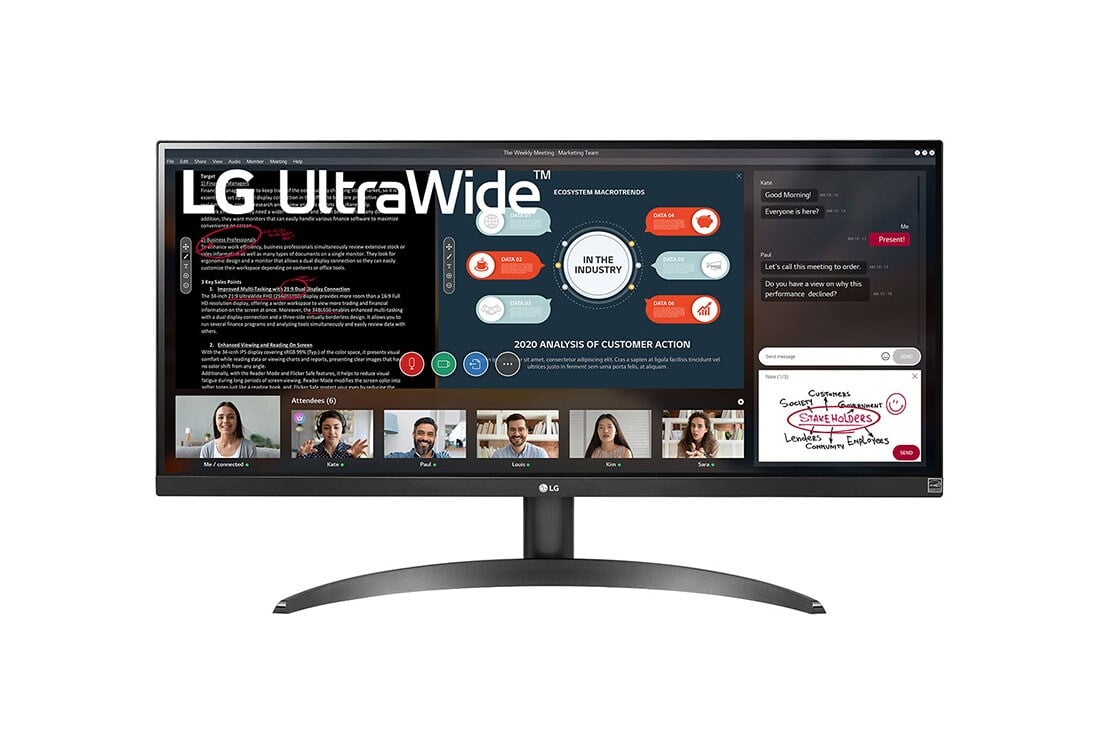
Side-by-side productivity on a budget: a 29-inch 21:9 IPS that lets you park Docs left and research right, ending tab-toggling frustration. At 75 Hz with FreeSync, it still pulls double duty for light gaming after hours.
Specs:
- 29-inch 2560 × 1080 IPS, 75 Hz
- 2 × HDMI, headphone-out
- sRGB 99 %, HDR10 (entry-level), VESA 100 × 100
Why we recommend it
Cheapest path to a usable ultrawide workspace, and IPS viewing angles beat VA when you lean back or share the screen during calls.
User tip
Use LG’s On-Screen Split software to create a 3-column layout, great for code, preview, and chat in one glance.
3 more points
Mini verdict
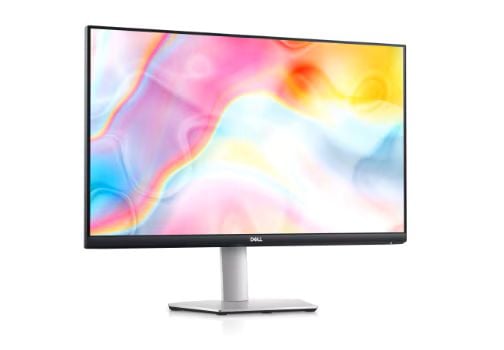
4 K clarity meets docking convenience: plug a single USB-C cable into your laptop for 65 W charging, video, and a downstream USB hub while enjoying pin-sharp 163 ppi text. Perfect for Canva pros, coders, and binge-streamers who crave Retina-like crispness.
Specs:
- 27-inch 3840 × 2160 IPS, 60 Hz
- USB-C 65 W PD, 2 × HDMI 2.0, 2 × USB-A, audio-out
- 99 % sRGB, HDR Ready, flicker-free
- Height, tilt, swivel, pivot stand; VESA 100 × 100
Why we recommend it
Delivers the rare trio of 4K resolution, ergonomic stand, and powered USB-C at a mid-tier price, not just for MacBooks, but any Type-C laptop.
User tip
In Dell Display Manager, enable Easy Arrange with a 2 × 2 grid, drag windows to corners and they’ll auto-snap, maximizing 4K real estate with zero hassle.
Conclusion
Finding the right monitor is like choosing a new home office partner, get one that matches your daily needs, fits your space, and supports your hustle (or your hobbies). Whether you’re a gamer, artist, student, or all-around multitasker, this year’s lineup has something tailor-fit for you.
Remember: don't just buy for the specs. Buy for how you’ll feel using it every day. If you’re squinting, lagging, or wishing for more screen real estate, it’s time for an upgrade.
And hey, don't wait for 12.12 to roll around. Your eyes (and your productivity) deserve better now.